Make a 3D character from a prompt
In this guide, you make an animated 3D character from a text prompt. You add the nodes yourself, in five steps:
| Step | Node | Result |
|---|---|---|
| 1. Concept | Generate Image | An image of the character. |
| 2. Model | Generate Model | A 3D model from the image. |
| 3. Texture | Texture Model | Better textures on the model. |
| 4. Rig | Rig Model | The model with a skeleton. |
| 5. Animation | Retarget Animation | The model in an animation, such as a walk. |
Each node of steps 2 to 5 uses the Tripo provider. Each node costs tokens. See the most tokens that the run can use next to Run.
Make a new workflow
- Click the name of the workflow at the top left.
- Click New. An empty canvas opens.
The workflow menu with New guides/3d-character-new
note
On the Free plan, an org can have 2 workflows: your first workflow and this one.
To add a node, type its name in Search tools at the left. Then drag the node onto the canvas, or click it. To link two nodes, drag from an output at the right of a node to an input at the left of the next node.
1. Make the concept
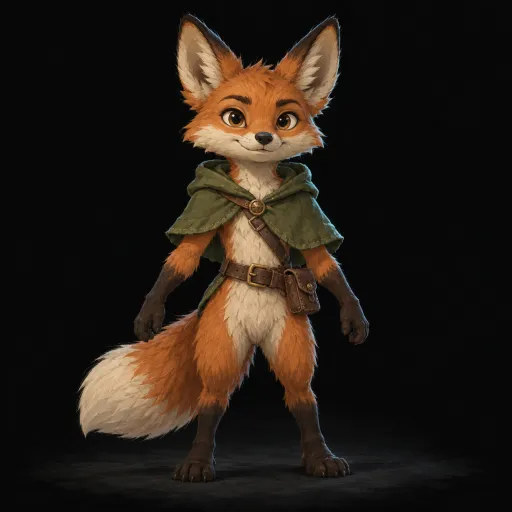
- Add a Plain Text node.
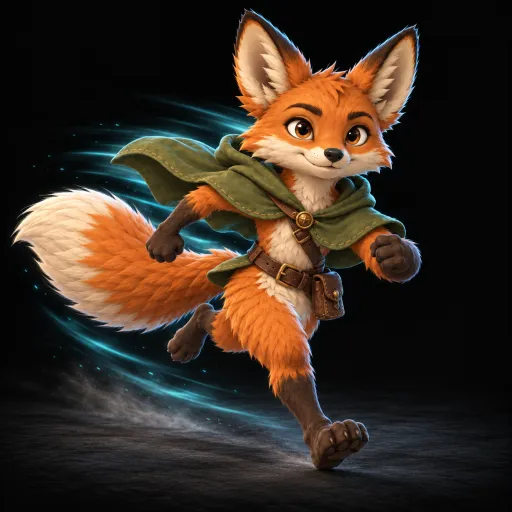
- Type a prompt for your character. For example: “A stylized fox adventurer with a green cloak, standing in a T-pose, seen from the front. Full body in frame, plain light gray background.”
- Add a Generate Image node.
- Link the Text output of Plain Text to the Prompt input of Generate Image.
A Plain Text node linked to a Generate Image node guides/3d-character-concept
A T-pose (arms out to the sides) and a plain background give a better model and a better rig.
2. Make the model
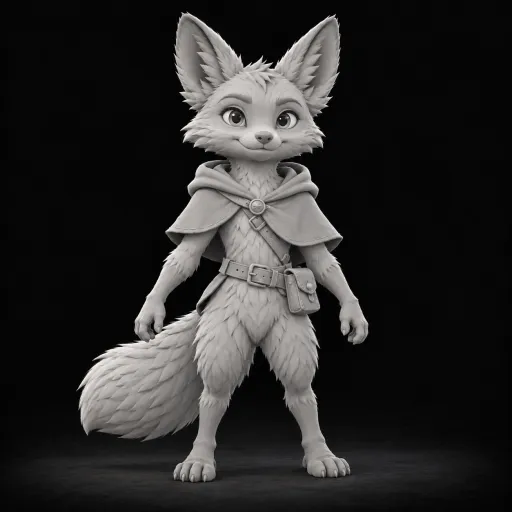
- Add a Generate Model node.
- Link the Images output of Generate Image to the Image input of Generate Model.
- Click Generate Model. In Params, set Type to Image to model.
Generate Model with Type set to Image to model in the inspector guides/3d-character-model
3. Add the textures
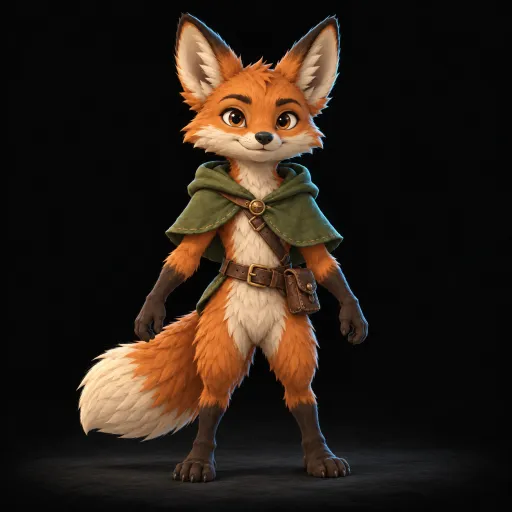
Generate Model already gives the model textures. Texture Model makes them again, with your concept image as a guide. You can skip this step.
- Add a Texture Model node.
- Link the Models output of Generate Model to the Model input of Texture Model.
- Link the Images output of Generate Image to the Reference input of Texture Model.
Texture Model linked to Generate Model and to the concept image guides/3d-character-texture
To get more detail, set Quality to Detailed in Params. A higher quality costs more tokens.
4. Add the skeleton
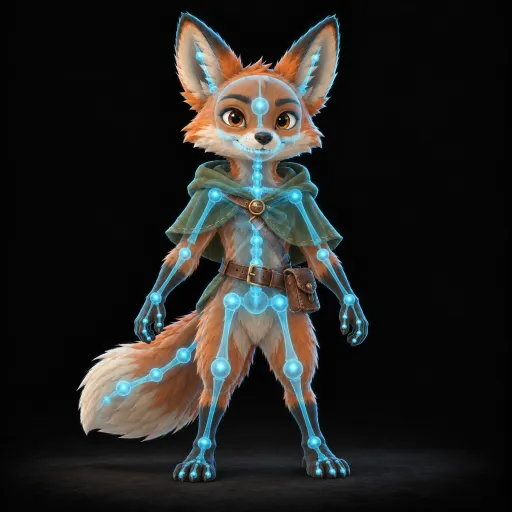
- Add a Rig Model node.
- Link the Model output of Texture Model to the Model input of Rig Model. If you skipped step 3, link the output of Generate Model.
- In Params, set Rig type to the body of your character. A person or a fox on two legs is biped. An animal on four legs is quadruped.
Rig Model with Rig type biped in the inspector guides/3d-character-rig
If your game engine needs its own bone names, set Bone naming, for example to unity or unreal.
5. Add the animation
- Add a Retarget Animation node.
- Link the Rigged model output of Rig Model to the Rigged model input of Retarget Animation.
- In Params, pick an Animation, such as preset:walk.
- To keep the character in one place while it walks, turn on In place.
- Add a Preview node. Link the Animated model output of Retarget Animation to the Value input of Preview.
Retarget Animation with preset:walk, linked to a Preview node guides/3d-character-animation
Retarget Animation takes only a model from a Rig Model node.
Run the workflow
- Press
⌘Aon Mac orCtrl+Aon Windows or Linux to select all nodes. - Click Run.
- Wait until the Preview node shows the animated model. Each 3D node can take some minutes.
- Turn the model with the mouse. Use the playback controls to play the animation.
The Preview node with the animated fox model guides/3d-character-result
If you do not like a result, change the settings of the node. Then click Re-run in the Run tab of the node. To keep a result that you like, lock the node. See Run nodes.
Get the file
- Each result goes to your library. Click the
…button of the tile, then Download. - To get a file for your game engine, link the animated model to a Convert Model node. Set Format to FBX or GLTF, then run it.
The Rig and animate template
The template Rig and animate makes the rig and the animation with the AI Rig Model and AI Animation templates. In these templates, an agent rigs the model, then animates it to match a video of the motion. See Animate a character from a video.